Fix hair edges and halos after background removal
Updated
To check hair edges after background removal, switch between the light and dark previews. A pale outline is easier to see on dark, while a light preview helps reveal dark specks around hair and shoulders.
On this page
Steps
- Run automatic removal and zoom in on the head and shoulders in the edge previews.
- Try Refine hair and inspect the change before applying another adjustment.
- Open Edit, choose a small erase or restore brush, then apply the changes.
Identify the problem
A fringe carries the original background colour around hair or clothing. Residue consists of detached background pieces. Missing areas occur when the model treats part of the subject as background. The editor offers different tools for these cases.
Choose the edit for the problem you see
 Before background removal
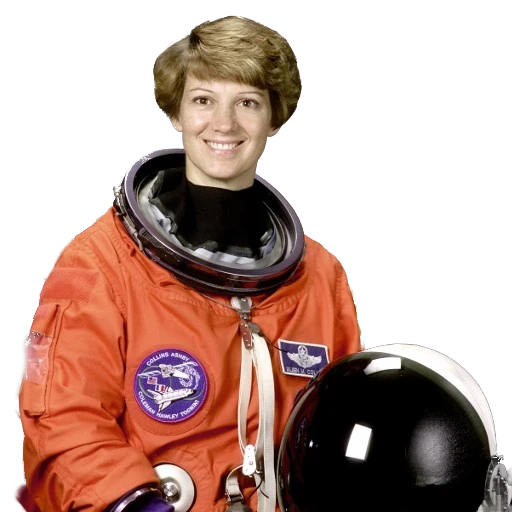 After background removal
- For a pale outline touching the subject, try Reduce fringe once and inspect the edge at higher zoom.
- For a detached speck, try Clean residue or the erase brush. Recheck thin straps or cables before saving.
- If part of the hair or shoulder disappeared, compare against the original. Try the portrait model or restore the missing area with a small brush.
Keep the available detail
Zoom helps reveal individual strands, but a very blurry source has limited boundaries to preserve. Use a clearer photograph when possible. Inspect the body and clothing after hair refinement so the intended subject stays complete.
Frequently asked questions
Should I press Refine hair repeatedly?
Inspect each change first. If you lose detail, use Undo or Restore.
How can I remove the background between fingers?
Zoom into the region and use a small erase brush, or select a narrow area and inspect the result.
Inspect the shoulder and hair separately
Check the same edge on both backgrounds before you retouch it. If a strand disappears after fringe reduction, restore a small section. Work one area at a time and export a sample at its normal viewing size.